
Quick Tip: For the highest security and large balances, the Official Monero GUI Wallet (developed by the core Monero Project) paired with a physical hardware wallet (Trezor Safe 3/5/7 or Ledger Nano X/Stax) is the undisputed gold standard.
You know, finding the best Monero wallets can be tricky, especially since many popular crypto wallets don’t support XMR due to regulations. You need a XMR wallet that keeps your private keys secure, protects your privacy, and makes sending or receiving Monero simple.
So, which wallets support Monero, and which ones are actually worth using?
In this guide, I’ve compared 5 popular Monero wallets, including hardware, mobile, and desktop options. We’ll look at their security features, supported devices, costs, and drawbacks to help you choose the best XMR wallet for your needs.
First, here my 3 top recommended Monero crypto wallets…
Safest & Popular Picks: Which Wallets Support Monero (XMR)
- Ledger Flex: Best Monero Hardware Wallet for Cold Storage
- Trezor Safe 7: Safest Anonymous Hardware Wallet for XMR
- Keystone 3 Pro: 100% Air-Gapped Cold Wallet for Monero (XMR)
- Monero GUI Wallet: Best Official Monero Desktop Wallet
- Cake Wallet: Best Monero Wallet for Beginners
Quick Comparison: Top Monero Wallets to Store XMR Crypto Securely
| Criteria | Ledger Flex | Trezor Safe 7 | Keystone 3 Pro | Monero GUI | Cake Wallet |
|---|---|---|---|---|---|
| Price (USD) | $249 | $249 | $149 | Free | Free |
| Private key storage | Hardware Secure Element | Hardware security chips | Hardware Secure Elements | Computer (hot wallet) | Phone/computer (hot wallet) |
| XMR wallet compatibility | Cake, Feather | Cake, Monero One | Feather* | Native XMR support | Native XMR support |
| Transaction signing | On-device; USB/Bluetooth | On-device; USB/Bluetooth | Offline QR codes | On computer | On phone/computer |
| Node privacy control | Via companion app | Via Cake Wallet | Via Feather* | Local or remote node | Custom or remote node |
| Backup and recovery | Ledger recovery phrase | Trezor recovery phrase; SLIP-0010 | Hardware recovery phrase | 25-word Monero seed | 16-word Polyseed by default |
(Reviews) Best Monero Wallets in 2026: Top XMR Wallet Apps & Hardware Options
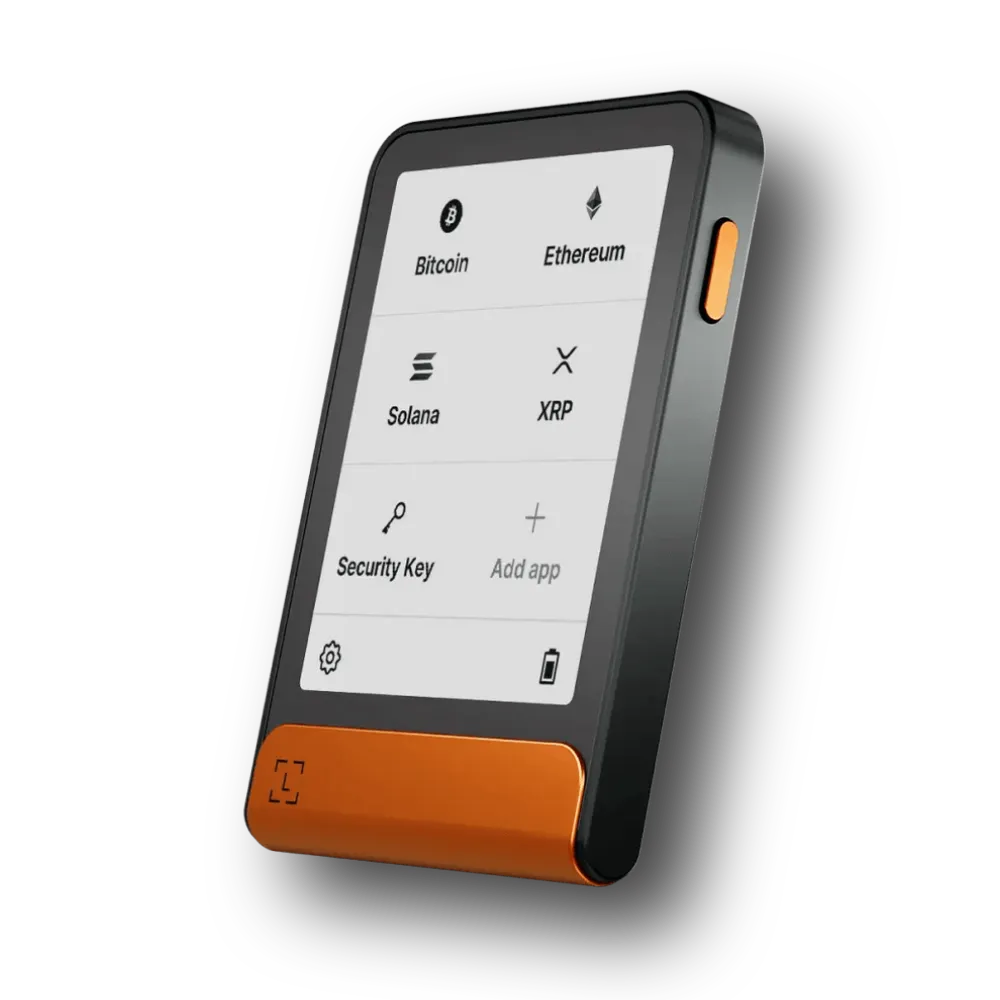
Ledger Flex: Best Monero Hardware Wallet for Cold Storage
Ledger Flex is a strong choice for keeping Monero private keys off your everyday computer or phone. Its E Ink touchscreen makes transaction approval easier, while Cake Wallet and Feather provide the XMR features that Ledger’s own app does not. You get a practical mix of cold storage and regular access, but you must use a compatible external wallet to move Monero.
Wallet Details
For long-term XMR storage, the most important thing about Ledger Flex is where your spend key stays. The device holds your private keys in its CC EAL6+ Secure Element and signs transactions without handing those keys to the connected phone or computer. Its 2.84-inch E Ink touchscreen gives you more room to check transaction details than a tiny button-operated display. That matters whenever you move a larger Monero balance.
Here is the part buyers often miss: Monero does not work as a regular account inside Ledger Wallet (formerly Ledger Live). You need a compatible Monero app. Cake Wallet supports Ledger Flex for XMR over Bluetooth on iOS and Android, and USB is also an option on supported Android setups. Feather Wallet lists Flex support for desktop users. Install the Monero app on your Ledger and create the hardware-backed XMR wallet through the companion software rather than importing your Ledger recovery phrase into a hot wallet.
The trade-off is convenience versus isolation. Bluetooth and USB make it easier to send XMR, but the Flex is not an air-gapped signer. A node still handles blockchain access through your wallet software, so your choice of remote or personal node affects network privacy. For someone who holds Monero alongside other coins and wants a well-supported hardware device, though, Flex is a sensible option.
Key Insights
| Native XMR support | Yes, through third-party wallets |
|---|---|
| Required XMR software | Cake Wallet or Feather Wallet |
| XMR in Ledger Wallet | No direct XMR account management |
| XMR private spend key | Kept inside the hardware wallet |
| Transaction approval | On-device E Ink touchscreen |
| Secure Element | ST33K1M5; CC EAL6+ certified |
| Display | 2.84-inch E Ink; 480 × 600 pixels |
| Connections | Bluetooth 5.2 and USB-C |
| Mobile XMR support | Cake Wallet on iOS and Android |
| Desktop XMR support | Feather Wallet |
| Air-gapped QR signing | No |
| Open-source firmware | No; Ledger OS is not fully open source |
| Backup | Ledger recovery phrase; hardware-derived Monero keys |
| XMR network privacy | Depends partly on the node and companion app |
What I Like / What I Don’t Like
The reason I would consider Flex for XMR is simple: it separates the key that can spend your Monero from the computer or phone that talks to the network. The screen is also genuinely useful. You can take a moment to review a payment on the device instead of relying only on what a laptop shows. Cake Wallet support makes mobile access more realistic than it used to be.
There are still a few catches. You have to learn a two-app setup, and XMR will not appear alongside your other balances inside Ledger Wallet. The E Ink display responds more slowly than a typical phone screen, and Ledger’s closed-source firmware will not appeal to people who want every part of their signing device publicly auditable. Also, Bluetooth convenience does not make a device anonymous by itself.
People asking which wallets support Monero should know that Flex needs external software. Among wallets that support XMR, Flex stands out for its readable screen and convenient phone pairing. I would choose it for key isolation and established companion-app options—not for built-in Monero software, because it has none.
Pros
- Private spend keys remain on the Ledger device
- Large touchscreen helps with transaction review
- Cake Wallet supports mobile XMR access
- Feather offers a desktop Monero option
- Secure Element protects against key extraction
- Can secure other supported crypto on one device
Cons
- XMR does not appear as a normal Ledger Wallet account
- Requires an external Monero wallet to transact
- Not a fully air-gapped Monero cold storage wallet
- E Ink screen refreshes more slowly than LCD
- Firmware is not fully open source
- Bluetooth and USB are extra connection surfaces
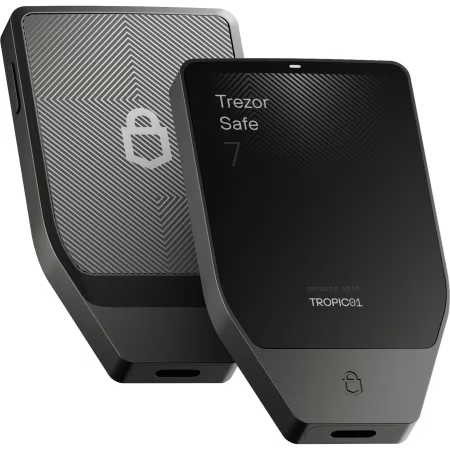
Trezor Safe 7: Safest Anonymous Hardware Wallet for XMR
Trezor Safe 7 combines a bright touchscreen, open-source firmware, and multiple security chips with hardware-backed Monero storage. It is an attractive option if you prefer transparent security design, but there is a specific catch for XMR: Safe 7 currently works with Cake Wallet rather than Monero GUI or Feather. You also need to understand that no hardware wallet alone guarantees anonymous transactions.
Wallet Details
Trezor Safe 7 puts a lot of attention into protecting the device itself. It uses the auditable TROPIC01 security chip, a separate EAL6+ Secure Element, and a security-hardened microcontroller. The 2.5-inch color touchscreen is clear enough for reviewing payments, and the firmware is open source. Those features make it a compelling Monero hardware wallet for people who want strong physical safeguards without giving up the ability to inspect its software design.
For Monero specifically, do not follow an older Trezor tutorial without checking the model. Safe 7 uses a newer communication protocol. It supports XMR with Cake Wallet on iOS and Android, plus Monero One on iOS, but the official Monero GUI/CLI and Feather do not currently support this model. Trezor Suite also does not manage Monero accounts. You create and use the XMR wallet through the supported third-party app while the Trezor handles sensitive signing.
A final point deserves attention: Trezor derives Monero keys using SLIP-0010. A recovery phrase from Safe 7 may not reproduce the same Monero address in an unrelated wallet that uses different derivation rules. Keep your backup offline, document the device and wallet combination, and test your recovery procedure before making it your only long-term storage setup.
Key Insights
| Native XMR support | Yes, through compatible external apps |
|---|---|
| Supported XMR app | Cake Wallet: Android and iOS |
| Additional iOS option | Monero One |
| Monero GUI / CLI | Not supported on Safe 7 |
| Feather Wallet | Not supported on Safe 7 |
| Trezor Suite XMR support | No |
| XMR private spend key | Protected by hardware device |
| Security chips | TROPIC01, EAL6+ Secure Element, MCU |
| Firmware | Open source |
| Display | 2.5-inch color touchscreen; 520 × 380 |
| Connectivity | Encrypted Bluetooth; USB-C |
| Backup derivation | SLIP-0010; cross-wallet restoration may differ |
| Air-gapped QR signing | No |
| Privacy limitation | Node and app setup still affect metadata exposure |
What I Like / What I Don’t Like
Among popular Monero wallets, Safe 7 stands out for its security design. It offers a bright, responsive screen and an open approach to firmware, with several separate chips involved in protecting the device. For someone who wants an XMR hardware wallet they can also use with a phone, Cake Wallet support is a useful addition.
On the other hand, I would not buy Safe 7 specifically for a desktop Monero GUI workflow. That combination does not currently work. The required Cake Wallet setup and model-specific recovery rules add a little learning, too. Its Bluetooth connection is encrypted, but it is still a connected device; the Monero network, wallet software, and your own habits determine much of your real-world privacy.
Safe 7 deserves consideration for people who value open-source security and hardware signing, not because it can promise complete anonymity or because every Trezor-compatible Monero app supports it.
Pros
- Open-source firmware supports independent review
- Multiple chips protect sensitive signing operations
- Bright 2.5-inch color touchscreen
- Cake Wallet enables XMR use on iOS and Android
- Encrypted Bluetooth offers phone convenience
- Premium build with USB-C and wireless charging
Cons
- Monero GUI and Feather do not support Safe 7
- Trezor Suite cannot manage XMR directly
- Requires a compatible third-party wallet
- Not suitable for fully air-gapped XMR signing
- Recovery derivation can complicate migration to other brands
- Anonymity also depends on network and usage habits
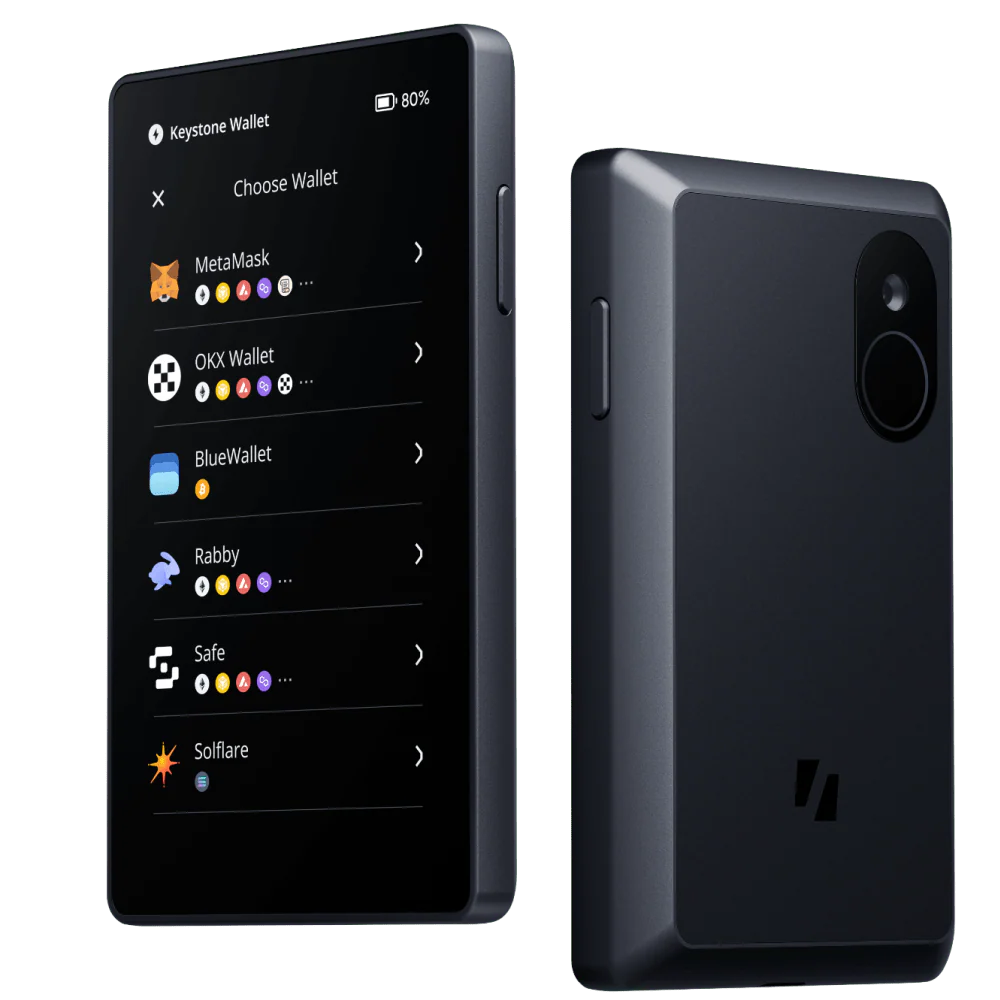
Keystone 3 Pro: 100% Air-Gapped Cold Wallet for Monero (XMR)
Keystone 3 Pro is designed for people who prefer to move signed transaction data by QR code rather than connect their signing device to a phone or computer. Its Cypherpunk firmware includes XMR support and Keystone lists Feather as its companion wallet. The security approach is appealing, but Monero integration needs extra care because users have reported signing difficulties and Feather’s general hardware list does not include Keystone.
Wallet Details
The Keystone 3 Pro has a large 4-inch color touchscreen, three Secure Element chips, fingerprint unlock, and a QR-based transaction workflow. In Air-Gap Mode, you can keep the device disconnected from Bluetooth, Wi-Fi, and a wired data connection while preparing and signing XMR transactions. That separation makes it an interesting Monero cold storage wallet for users who would rather avoid direct computer-to-wallet communication.
Monero support does require a deliberate setup choice. Keystone offers different firmware editions, and XMR is part of the Cypherpunk edition rather than the regular multi-coin experience. The company lists Feather Wallet as the desktop interface for XMR. You prepare a transaction using compatible software, review it on Keystone, and return the signed data by QR code for broadcast. Firmware updates can use microSD; WebUSB updating is also offered, so “100% air-gapped” describes the configured signing workflow, not every possible device operation.
I would be careful before relying on it for a large XMR balance. Keystone advertises Feather compatibility, but Feather’s own hardware-device documentation does not list Keystone. There have also been reports of XMR transactions failing during signing. Install current firmware, confirm the exact supported workflow, then test sending, restoring, and moving a small amount first. The air-gap design is useful only if you can reliably recover and spend your funds.
Key Insights
| XMR support | Cypherpunk firmware edition |
|---|---|
| Required firmware | Keystone Cypherpunk; not standard multi-coin |
| XMR companion wallet | Feather, per Keystone compatibility list |
| Companion-app caveat | Not listed in Feather’s general hardware device list |
| Signing method | QR-code-based offline signing |
| Air-Gap Mode | Yes; enabled for isolated signing |
| Display | 4-inch LCD touchscreen; 480 × 800 |
| Hardware security | Three Secure Element chips |
| Unlock options | PIN / fingerprint |
| Firmware updates | microSD or optional WebUSB |
| Wireless connection for signing | No Bluetooth or Wi-Fi required |
| Firmware source | Open-source firmware |
| Wallet backups | Recovery phrase; follow firmware-specific guidance |
| Real-world caution | Test XMR signing and recovery before large deposits |
What I Like / What I Don’t Like
The appeal of Keystone is easy to understand. You can inspect payment details on a spacious screen and sign without pairing your wallet to a laptop or phone. For anyone researching the safest Monero wallet, keeping a signing device isolated from networked computers is a meaningful security design choice. The fingerprint reader also makes everyday unlocking convenient.
The downside is the XMR workflow itself. You need the right firmware, the right software, and the patience to move data by QR code. More importantly, Monero compatibility information is not perfectly consistent across Keystone and Feather documentation, and some users have encountered signing problems. I would want to complete a test withdrawal and recovery before treating this as my main XMR vault.
The best wallet for Monero cold storage is one you can reliably recover and spend from. I like the air-gap concept, but I would recommend Keystone 3 Pro only to someone comfortable verifying firmware compatibility and troubleshooting an advanced setup.
Pros
- QR signing can isolate the device from computers
- Large screen for reviewing transaction information
- Cypherpunk firmware specifically includes XMR
- Three Secure Element chips
- Fingerprint unlock and open-source firmware
- microSD updates allow an offline maintenance route
Cons
- Must install the correct Cypherpunk firmware
- Feather compatibility documentation is inconsistent
- Reported XMR signing failures deserve attention
- More steps than connected hardware wallets
- Not every device operation is automatically air-gapped
- Less suitable for beginners who need reliable quick payments
Monero GUI Wallet: Best Official Monero Desktop Wallet
Monero GUI Wallet is the free, open-source desktop app developed by the Monero community. It provides native XMR sending, receiving, subaddresses, and node controls without forcing you into a multi-coin platform. Simple mode keeps setup manageable, while Advanced mode gives you far more control over privacy. By itself it is a hot wallet, though, so pairing it with supported hardware is the safer route for large balances.
Wallet Details
For anyone who mainly uses a computer and wants software built specifically for Monero, the official GUI wallet is a natural place to start. It gives you direct access to XMR functions instead of hiding Monero inside a generic crypto dashboard. You can create and restore a wallet, receive payments to subaddresses, review your transaction history, and control how the app connects to the blockchain.
Simple mode connects to a remote node automatically, which saves you from downloading and maintaining the entire blockchain. Advanced mode lets you run your own local node, connect to a trusted remote node, or prune blockchain data to save disk space. Running your own node reduces the information you reveal to a third-party node operator. The catch is that syncing a local node takes time, storage, and a little maintenance.
Monero GUI is not automatically cold storage. Create an ordinary wallet on an internet-connected PC and the spend keys exist in software on that PC. Supported Ledger and Trezor models can instead sign through compatible hardware-wallet integrations, but you must check the exact model; notably, Trezor Safe 7 does not currently work with Monero GUI. Download the app only from the Monero project and verify the published file hashes.
Key Insights
| Wallet category | Non-custodial desktop software |
|---|---|
| Official Monero project | Yes |
| Cost | Free and open source |
| Supported systems | Windows, macOS, Linux |
| XMR support | Native Monero wallet |
| Wallet modes | Simple and Advanced |
| Node connection | Automatic remote; custom remote; local |
| Personal full node | Supported |
| Blockchain pruning | Supported |
| Subaddresses | Supported |
| Hardware wallet option | Supported Ledger and Trezor models |
| Trezor Safe 7 compatibility | Not supported in Monero GUI |
| Private key storage | On PC unless paired with hardware |
| First-time setup | May need extended syncing |
| Download security | Verify checksum / signature before installing |
What I Like / What I Don’t Like
I like how much control the official GUI gives you without making every user learn command-line tools. Simple mode is enough for basic XMR payments, and the Advanced settings are there once you want to run your own node. For someone seeking the best XMR wallet on desktop, it belongs on the shortlist because it follows the needs of the Monero network rather than trying to support hundreds of unrelated chains. It is also one of the best Monero wallets for people who want control over their node.
The biggest drawback is setup time. A local node consumes disk space and needs to catch up with the chain, while a remote node can expose some network information to its operator. A normal software wallet also places the keys on the computer you use every day, which is a poor trade for a very large balance. Hardware pairing helps, but compatibility is model-specific.
I would pick Monero GUI for control, transparency, and desktop XMR management. Buyers seeking a cold wallet should pair compatible hardware with it or choose a separate offline signing arrangement.
Pros
- Official Monero community wallet
- Free, open-source and non-custodial
- Full native XMR wallet features
- Simple mode for quick setup
- Local node option improves network privacy
- Supports several compatible hardware wallets
Cons
- Standard software setup is not cold storage
- Full-node sync uses time and disk space
- Remote nodes have privacy trade-offs
- More settings than a basic mobile wallet
- Not compatible with Trezor Safe 7
- Requires careful software download verification

Cake Wallet: Best Monero Wallet for Beginners
Cake Wallet makes using Monero feel much less intimidating. You can set up a self-custody wallet, create a receiving address, scan a QR code, and send XMR from your phone without running a full node. It also has useful Monero features such as subaddresses, custom nodes, and restore-height controls. For small everyday balances it is convenient, although software wallets need extra care because the phone or computer holds your keys.
Wallet Details
Cake Wallet is one of the easiest ways to start using XMR without giving up ownership of your coins. You do not have to create an account or pass identity checks just to use the wallet. Open the app, create a Monero wallet, back up the recovery phrase, and you can receive or send payments. It is particularly good for paying by QR code and keeping several wallet accounts organized on a phone.
Under the simple interface, Cake includes functions that matter for actual Monero privacy. You can create subaddresses for different payments, choose or add Monero nodes, configure Tor or proxy connections, and set the restore height to avoid rescanning blocks that predate your wallet. Cake also has built-in exchange and buy/sell connections, but those are optional third-party services and can carry fees or identity checks of their own.
Cake is a hot wallet when you generate and use its keys directly on a networked device. That makes it practical for spending money, not my first choice for the bulk of a long-term XMR holding. It also supports some hardware-backed Monero setups, including Ledger Flex and Trezor Safe 7, which can keep spending keys on a separate device. Cake Wallet runs on iOS, Android, macOS, and Linux; current Windows desktop builds are paused.
Key Insights
| Wallet category | Non-custodial software wallet |
|---|---|
| Cost | Free; network fees still apply |
| Monero support | Native XMR sending and receiving |
| Mobile platforms | iOS and Android |
| Desktop platforms | macOS and Linux |
| Windows desktop | Current builds paused |
| Account or KYC to use wallet | Not required |
| Private key custody | Held by user; on device for hot wallets |
| Subaddresses / accounts | Supported |
| Restore height | Configurable for Monero syncing |
| Node selection | Preset or custom Monero nodes |
| Privacy connectivity | Tor and proxy options |
| Hardware XMR pairing | Supported Ledger and Trezor models |
| Built-in exchange | Yes; third-party rates and rules apply |
| Cold storage by default | No |
What I Like / What I Don’t Like
There is a reason Cake often comes up in conversations about the best Monero mobile wallet. The basics are straightforward: the receiving QR code is easy to find, sending a payment takes only a few steps, and you can restore your wallet when you change phones. You also get real Monero tools such as subaddresses rather than a stripped-down balance screen.
The part I would pay attention to is phone security. A normal Cake wallet keeps spend keys on the device, so malware, an exposed backup, or a stolen unlocked phone can put funds at risk. Initial wallet syncing may also feel slow, especially during an old-wallet restore. Finally, the built-in exchange is convenient, but it is separate from simply storing XMR and may involve provider fees or checks.
For anyone looking for the best Monero wallet app for daily payments, I would start with Cake. No single app is the best fit for every balance, though. I would use a supported hardware wallet for a sizable XMR holding and keep Cake as the companion interface instead.
Pros
- Easy setup with no wallet account required
- Native XMR payments and QR scanning
- Free, open source and non-custodial
- Monero subaddresses and restore-height settings
- Tor, proxy and custom-node options
- Can pair with certain Monero hardware wallets
Cons
- Normal mobile setup keeps keys on an online device
- Not a cold-storage wallet by default
- Long restores can take time to rescan
- Third-party swaps may add fees or KYC rules
- Windows desktop builds are currently paused
- More privacy settings require extra setup
Types of Monero Wallets that Support XMR
You know, picking a top-rated Monero wallet can feel confusing at first. So, let me make it simple. Every XMR wallet holds your coins, but each one handles safety and ease of use in its own way. Plus, best Monero wallets also support privacy tools like stealth addresses and ring signatures.
Hardware Monero Wallets (Cold Storage)
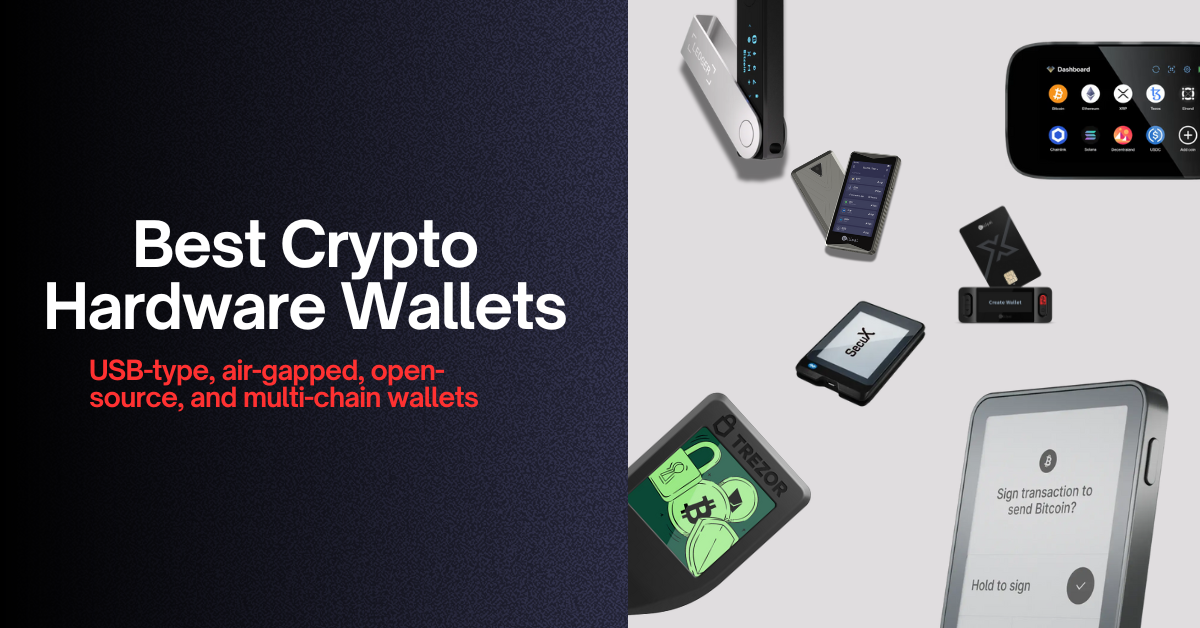
Hardware wallets are generally the safest choice for storing large amounts of XMR. They keep your private spending keys inside a separate device, away from your computer or phone. For example, Ledger Flex supports Monero through compatible apps like Cake Wallet and Feather. Trezor Safe 7 works with Cake Wallet, while Keystone 3 Pro offers offline QR-code signing with its Cypherpunk firmware.
Now, here’s something worth knowing: most Monero hardware wallets need a separate app to send and receive XMR. So, check wallet compatibility before buying one.
Mobile Monero Wallets (Android and iOS)
Mobile crypto wallets make it easy to store, send, and receive Monero directly from your smartphone.
Cake Wallet is one of the popular Monero wallets for Android and iOS. It supports XMR payments, QR codes, subaddresses, and custom nodes. Android users can also choose Monerujo. The biggest advantage here is convenience. You can access your XMR anytime without carrying another device.
Desktop Monero Wallets
Desktop wallets give you more control over your Monero transactions, especially if you use XMR regularly. The official Monero GUI Wallet works on Windows, macOS, and Linux. It offers a simple mode for beginners and an advanced mode for users who want to run their own Monero node. Plus, Feather Wallet is another option if you prefer a lighter desktop XMR wallet.
Hot Wallets vs. Cold Wallets for XMR
The main difference comes down to where your private keys stay.
- Hot wallets store your spending keys on an internet-connected device. They offer quick access but expose your funds to greater risks from malware and online attacks.
- Cold wallets keep those keys offline or inside dedicated hardware. They offer stronger protection for long-term Monero storage.
Now, for everyday XMR payments, a mobile wallet like Cake makes sense, but for larger holdings, I would choose a compatible cold storage Monero wallet instead.
How to Choose the Most Secure Wallet for Monero (XMR) Storage
The most secure Monero wallet should protect your private keys, support native XMR transactions, and give you a safe way to recover your funds. You also need to consider how often you plan to send Monero and how much control you want over your privacy.
Here are the most important things I would check before choosing an XMR wallet…
- Choose a Monero wallet that gives you full control over your private keys: You should always look for a non-custodial Monero wallet. It lets you control your XMR without depending on an crypto exchange or another company to approve withdrawals. Cake Wallet, Monero GUI, Ledger Flex, and Trezor Safe 7 all offer self-custody.
- Look for cold storage if you plan to hold a large amount of XMR: You know, hardware wallets keep your private spending keys away from your everyday computer or phone. Ledger Flex and Trezor Safe 7 are best wallets for Monero cold storage.
- Check native Monero support before choosing a wallet: Well, not every best crypto wallet that supports hundreds of coins can store Monero. For example, MetaMask does not support native XMR. Even Ledger’s own wallet software and Trezor Suite cannot manage Monero directly. Plus, you need to make sure your chosen XMR wallet supports the actual Monero blockchain, not just a wrapped token.
- Pay attention to node privacy: Monero hides important transaction details, but the node you connect to can still collect some information about your wallet activity and network connection. Plus, running your own Monero node gives you more control. The official Monero GUI supports local nodes, while Cake Wallet lets you choose a custom remote node.
- Check backup and recovery options: Your recovery phrase is just as important as your wallet. So, choose a best XMR wallet that lets you create an offline backup and restore your funds on a compatible device. Also, check the wallet’s security updates, supported devices, and transaction signing process. A secure Monero wallet should make it easy to confirm where you are sending your XMR.
How to Set Up a Monero Wallet and Store XMR Safely
Here is how I recommend setting up your XMR wallet safely.
- Choose your Monero wallet: You must pick Cake Wallet for Android or iPhone, Monero GUI for desktop, or a compatible Ledger or Trezor device for cold storage.
- Download the official wallet software: Now, Visit cakewallet.com or getmonero.org. Download the app directly from its official website or verified app store listing. Check the download signature or hash where the developer provides one.
- Create a new XMR wallet: Open the app, choose the option to create a wallet, and follow the setup instructions. Cake Wallet lets you create a Monero wallet with a 16-word Polyseed recovery phrase by default. The traditional Monero seed uses 25 words.
- Save your recovery phrase offline: Next, write down every word in the correct order and keep it somewhere private. Never share it, upload it to cloud storage, or enter it on a website. For a hardware wallet, create and back up the recovery phrase on the hardware device itself.
- Connect your wallet to the Monero network: Cake Wallet normally connects through a remote node, while Monero GUI lets you choose a remote or local node. You should allow the XMR wallet to finish syncing before checking your balance or sending coins.
- Find your Monero receiving address: Open the Receive section and copy your XMR address or generate a subaddress. Check the address carefully before sharing it or using it for a withdrawal.
- Send a small test transaction first: Transfer a small amount of XMR from your exchange or another cryptocurrency wallet. Check that the funds arrive and appear in your wallet after syncing. Send the remaining balance only after you confirm everything works.
- Test your backup and keep your wallet updated: Learn how to restore your wallet before storing a large balance. For hardware wallets, follow the manufacturer’s model-specific recovery process. Keep the wallet software and firmware updated using official sources.
Which Popular Crypto Wallets No Longer Support Monero?
Two popular Monero wallets have already ended their services or XMR support.
- Exodus Wallet: Exodus officially ended Monero support on August 18, 2025. You can no longer view your XMR balance or send Monero through Exodus.
- MyMonero Wallet: Well, MyMonero closed its wallet service on January 6, 2026, after more than a decade of operation. The company worked with Cake Wallet to help users move to another Monero wallet.
Conclusion: Which Monero Wallet Is Best for You?
In a nutshell, the best Monero wallet depends on how you want to store and use your XMR. Actually, for long-term XMR cold storage, Ledger Flex is my top overall choice. It keeps your private spending keys inside a secure hardware device and works with compatible Monero apps. Trezor Safe 7 is another best Monero wallet, especially if you prefer open-source firmware and hardware-backed security.
Now, for everyday transactions, I would choose Cake Wallet. It’s free, easy to use, and works on both Android and iPhone. Monero GUI is the best Monero wallet if you use a desktop computer and want to run your own node.
FAQs: Best XMR Wallets
What Is the Best Wallet for Monero (XMR)?
Ledger Flex is my top Monero hardware wallet for long-term storage, while Cake Wallet is the best choice for everyday XMR payments. Ledger Flex keeps your private keys inside the device and works with compatible Monero apps. Cake Wallet offers free self-custody on Android and iOS. Plus, for desktop users, Monero GUI is another excellent option.
What Is the Safest Monero Wallet?
A compatible hardware wallet for XMR is generally the safest option for storing large amounts of Monero. Ledger Flex and Trezor Safe 7 keep your private spending keys away from your phone or computer. Trezor also offers open-source firmware.
What Is the Best Monero Wallet for iPhone?
Cake Wallet is my top Monero wallet for iPhone. It lets you send, receive, and store native XMR without creating an account. You also get subaddresses, QR payments, and custom node settings.
What Is the Best Free Monero Wallet?
Monero GUI and Cake Wallet are two of the best free Monero wallets. Monero GUI works on Windows, macOS, and Linux and lets you run your own node. Cake Wallet is easier for beginners who prefer mobile payments.
Does Trust Wallet or MetaMask Support Monero?
No, Trust Wallet and MetaMask does not currently support native Monero (XMR) storage. You cannot simply add the Monero blockchain as a custom token network. Also, be careful with wrapped tokens that use the XMR name, because they are not native Monero.
Can You Store Monero in a Cold Wallet?
Yes, you can store Monero in a cold wallet using compatible hardware devices such as Ledger Flex and Trezor Safe 7.
Can You Store Bitcoin and Monero in the Same Wallet?
Yes, some multi-coin cryptocurrency wallets can manage both Bitcoin (BTC) and Monero (XMR). Ledger Flex and Trezor Safe 7 support both cryptocurrencies, although you need separate compatible apps to manage them. Cake Wallet also supports BTC and XMR within the same application.